Blogumus Tag Cloud with # in the Tag

I've been using Blogumus Tag Cloud for awhile and very impressed with it.
However, since my blog contains many technical posts about C#, there is no doubt that "C#" is one of the tags floating around in Blogumus.
When clicking on the "C#" tag, it shows no result!!!
After messing around, I've found that Clicking on the default Blogger "C#" tag actuallly searches for "C%23" while clicking on the Blogumus "C#" tag searches for "C#".
With this JavaScript put at the beginning of the Blogger template, Blogumus "C#" tag is now (kind of) working properly.
<script language="javascript" type="text/javascript">     var url = document.URL.replace(/\r\n/g,"\n");     var newUrl = url.replace('#', '%23');     if(newUrl != url){         document.location = newUrl;     } </script>
I know it's kinda cheating but, well, it works :P
Bookmark and Share

How To Run Full Screen IE with Toolbar Disabled (Kiosk Mode)

You're going out for a big IT show and letting users - your prospective clients - to enter their information via a website but you don't want them to navigate away freely.
You have tried pressing F11 to get a full screen mode of Internet Explorer but a user can still browse away freely.
Now you realize that you need a full screen mode without that annoying (in this case) toolbar.
What do you do?
  • Keep watching the users to prohibit them to browse around
  • Put a little sign on the top of your monitor telling them not to mess with it
  • Running IE in the kiosk mode
Obviously, you'll need the last option.
To run IE in the kiosk mode, click on the start menu button and click run.
Enter the following command:
iexplore -k [url]
where url is the page you want to IE to browse to.  It's optional.
If url is not specified, it will go to your home page.
Example:
iexplore -k www.stolenbit.com
The only way to exit the kiosk mode is to close IE by pressing Alt + F4.
Pressing Ctrl + O or Ctrl + L will allow you browse to other web sites.
Well, if a user knows these key combinations, he/she can still browse away :P
To quickly get back to your home page, simply press Alt + Home :)
In a big show, I highly suggest that you set the page you want to display as your home page so that you can quickly get back to it after the page is somehow changed (e.g. after submitting information).
Bookmark and Share

Let's Join Google Chrome Dev Channel

Recently, I've found a tool switching Google Chrome's channel from the beta channel to the dev channel.
What does this do?
Well, You get a chance to try the dev build of Google Chrome instead of the beta build that you can download from Google.
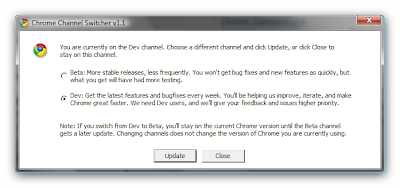
Download and run Chrome Channel Switcher
It's pretty small and should take no time to load.
Once running, select the second option: Dev.
When done, select "About Google Chrome" from the wrench button to bring up a dialog box.
It now should look for the latest dev build of Google Chrome.
Install and enjoy :)
If you have encountered any error in the beta build, I highly suggest you to try the dev build.
I was facing a problem when Chrome was trying to load the ScribeFire's InText Ads script.
With this dev build, the problem has now gone :)
Bookmark and Share